Меню
Разработки
Разработки  /  Информатика  /  Презентации  /  Презентация по информатике на английском языке "Work with databases"

Презентация по информатике на английском языке "Work with databases"

Презентация содержит информацию о создании БД в Access.
17.11.2015

Описание разработки

Basic questions of the theme:

Creation of database (DB).

Creation of tables.

Work with tables (searching and replacement of data, filters, assortment).

Connection between tables.

Scheme of data.

Installation and removal of connection between tables.
Презентация по информатике на английском языке Work with databases

Microsoft Access.

Microsoft Access, also known as Microsoft Office Access, is a database management system from Microsoft that combines the relational Microsoft Jet Database Engine with a graphical user interface and software-development tools.

It is a member of the Microsoft Office suite of applications, included in the Professional and higher editions or sold separately.
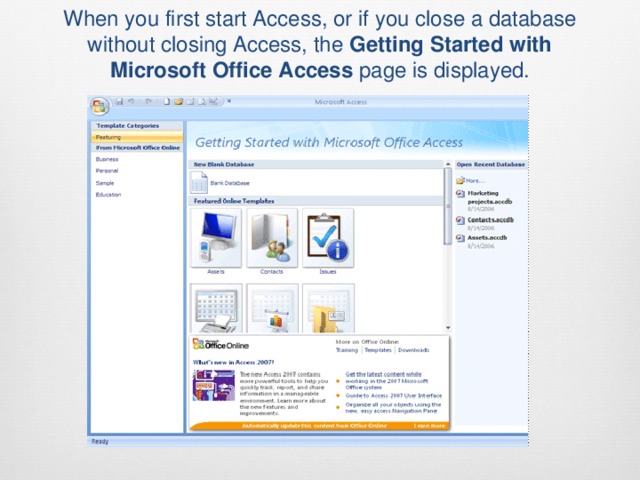
When you first start Access, or if you close a database without closing Access, the Getting Started with Microsoft Office Access page is displayed.
Содержимое разработки

Work with databases

Work with databases

Basic questions of the theme:   Creation of database (DB). Creation of tables. Work with tables (searching and replacement of data, filters, assortment). Connection between tables. Scheme of data. Installation and removal of connection between tables.

Basic questions of the theme:

  • Creation of database (DB).
  • Creation of tables.
  • Work with tables (searching and replacement of data, filters, assortment).
  • Connection between tables.
  • Scheme of data.
  • Installation and removal of connection between tables.
Microsoft Access Microsoft Access , also known as  Microsoft Office Access , is a database management system from Microsoft that combines the relational Microsoft Jet Database Engine with a graphical user interface and software-development tools. It is a member of the Microsoft Office suite of applications, included in the Professional and higher editions or sold separately.

Microsoft Access

  • Microsoft Access , also known as  Microsoft Office Access , is a database management system from Microsoft that combines the relational Microsoft Jet Database Engine with a graphical user interface and software-development tools. It is a member of the Microsoft Office suite of applications, included in the Professional and higher editions or sold separately.
When you first start Access, or if you close a database without closing Access, the  Getting Started with Microsoft Office Access  page is displayed.

When you first start Access, or if you close a database without closing Access, the  Getting Started with Microsoft Office Access  page is displayed.

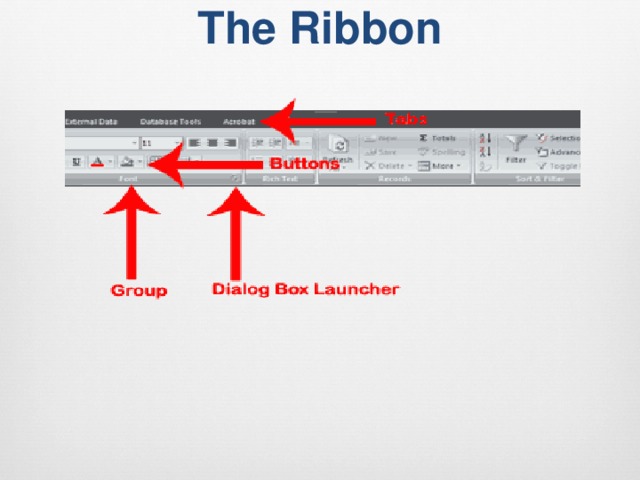
The Ribbon
The Ribbon

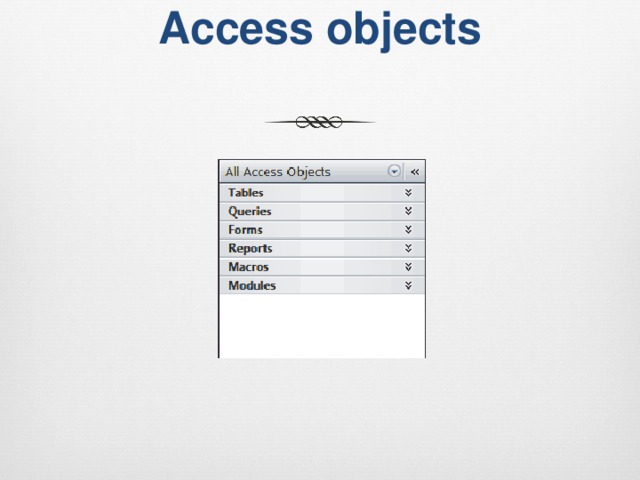
Access objects

Access objects

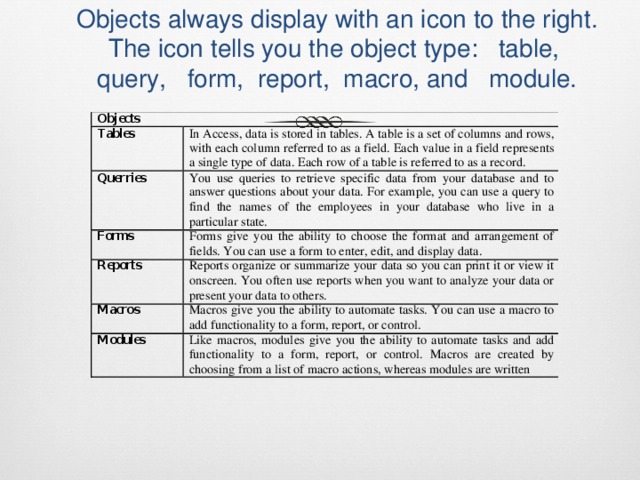
Objects always display with an icon to the right. The icon tells you the object type:   table,  query,   form,  report,  macro, and   module.
Objects always display with an icon to the right. The icon tells you the object type:   table,  query,   form,  report,  macro, and   module.

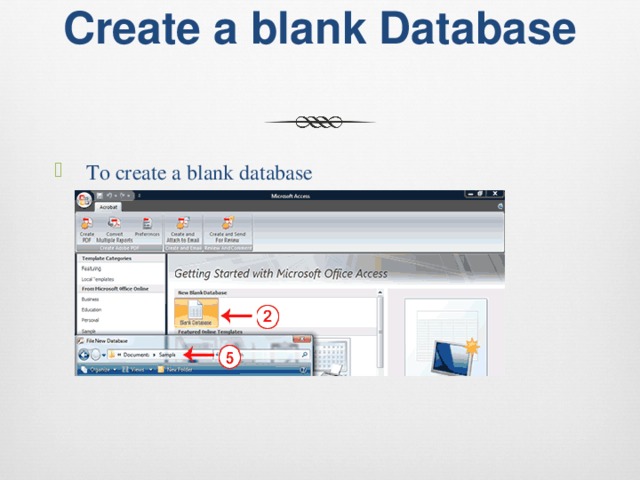
Create a blank Database   To create a blank database

Create a blank Database

  • To create a blank database
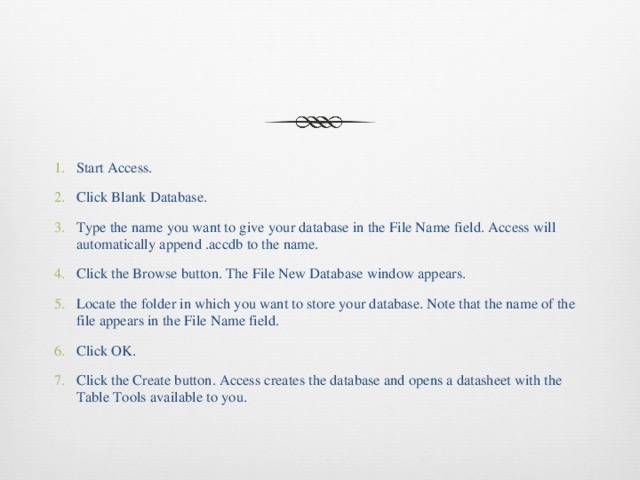
Start Access. Click Blank Database. Type the name you want to give your database in the File Name field. Access will automatically append .accdb to the name. Click the Browse button. The File New Database window appears. Locate the folder in which you want to store your database. Note that the name of the file appears in the File Name field. Click OK. Click the Create button. Access creates the database and opens a datasheet with the Table Tools available to you.
  • Start Access.
  • Click Blank Database.
  • Type the name you want to give your database in the File Name field. Access will automatically append .accdb to the name.
  • Click the Browse button. The File New Database window appears.
  • Locate the folder in which you want to store your database. Note that the name of the file appears in the File Name field.
  • Click OK.
  • Click the Create button. Access creates the database and opens a datasheet with the Table Tools available to you.
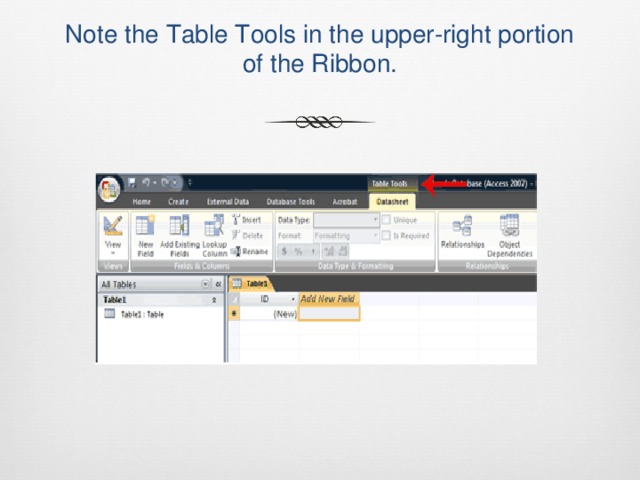
Note the Table Tools in the upper-right portion of the Ribbon.
Note the Table Tools in the upper-right portion of the Ribbon.

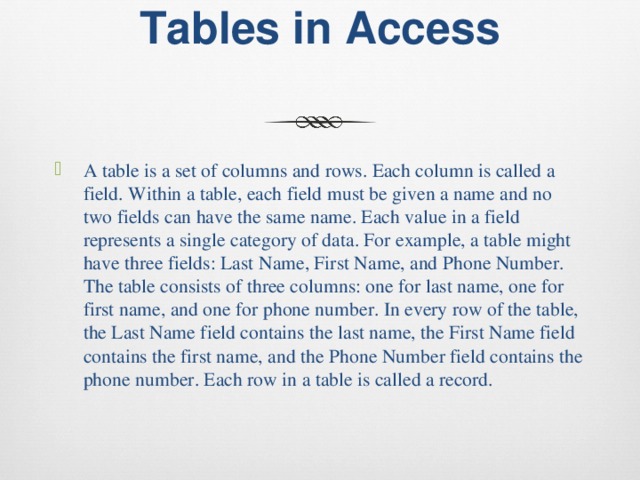
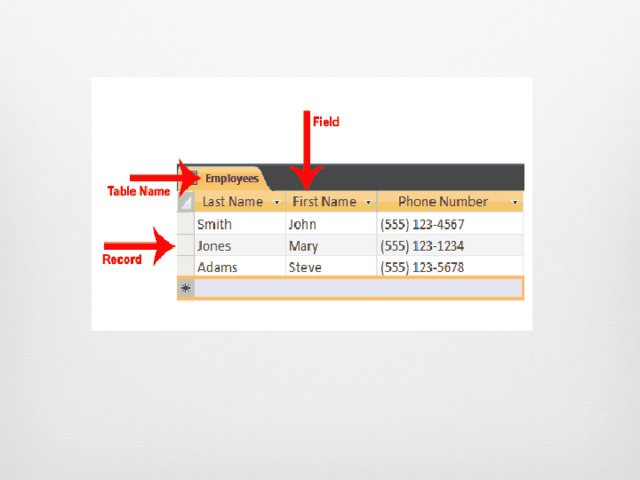
Tables in Access   A table is a set of columns and rows. Each column is called a field. Within a table, each field must be given a name and no two fields can have the same name. Each value in a field represents a single category of data. For example, a table might have three fields: Last Name, First Name, and Phone Number. The table consists of three columns: one for last name, one for first name, and one for phone number. In every row of the table, the Last Name field contains the last name, the First Name field contains the first name, and the Phone Number field contains the phone number. Each row in a table is called a record.
Tables in Access

  • A table is a set of columns and rows. Each column is called a field. Within a table, each field must be given a name and no two fields can have the same name. Each value in a field represents a single category of data. For example, a table might have three fields: Last Name, First Name, and Phone Number. The table consists of three columns: one for last name, one for first name, and one for phone number. In every row of the table, the Last Name field contains the last name, the First Name field contains the first name, and the Phone Number field contains the phone number. Each row in a table is called a record.
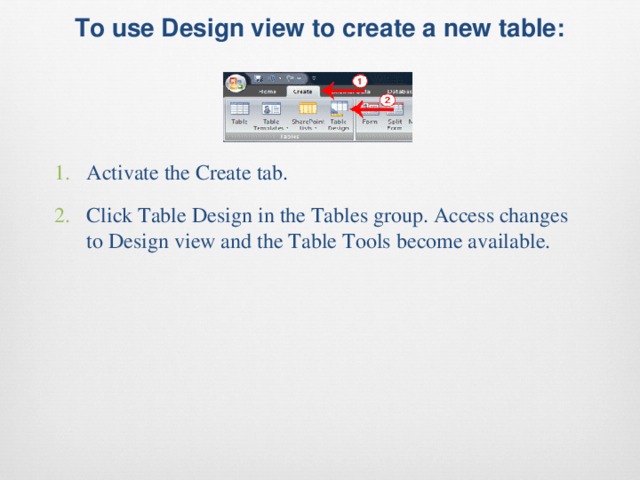
To use Design view to create a new table:   Activate the Create tab. Click Table Design in the Tables group. Access changes to Design view and the Table Tools become available.
To use Design view to create a new table:

  • Activate the Create tab.
  • Click Table Design in the Tables group. Access changes to Design view and the Table Tools become available.
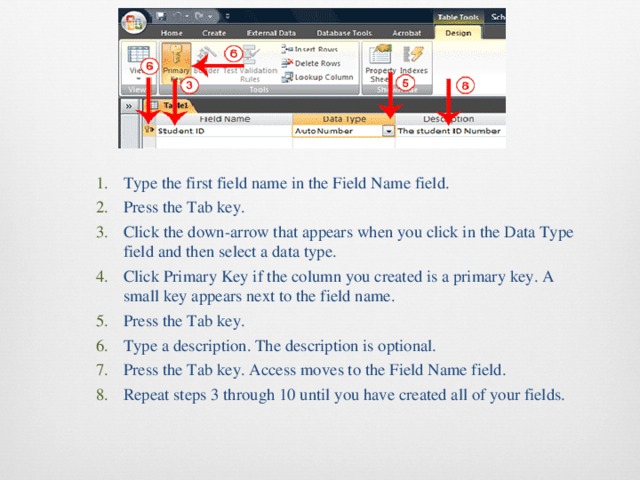
Type the first field name in the Field Name field. Press the Tab key. Click the down-arrow that appears when you click in the Data Type field and then select a data type. Click Primary Key if the column you created is a primary key. A small key appears next to the field name. Press the Tab key. Type a description. The description is optional. Press the Tab key. Access moves to the Field Name field. Repeat steps 3 through 10 until you have created all of your fields. Type the first field name in the Field Name field. Press the Tab key. Click the down-arrow that appears when you click in the Data Type field and then select a data type. Click Primary Key if the column you created is a primary key. A small key appears next to the field name. Press the Tab key. Type a description. The description is optional. Press the Tab key. Access moves to the Field Name field. Repeat steps 3 through 10 until you have created all of your fields.
  • Type the first field name in the Field Name field. Press the Tab key. Click the down-arrow that appears when you click in the Data Type field and then select a data type. Click Primary Key if the column you created is a primary key. A small key appears next to the field name. Press the Tab key. Type a description. The description is optional. Press the Tab key. Access moves to the Field Name field. Repeat steps 3 through 10 until you have created all of your fields.
  • Type the first field name in the Field Name field.
  • Press the Tab key.
  • Click the down-arrow that appears when you click in the Data Type field and then select a data type.
  • Click Primary Key if the column you created is a primary key. A small key appears next to the field name.
  • Press the Tab key.
  • Type a description. The description is optional.
  • Press the Tab key. Access moves to the Field Name field.
  • Repeat steps 3 through 10 until you have created all of your fields.
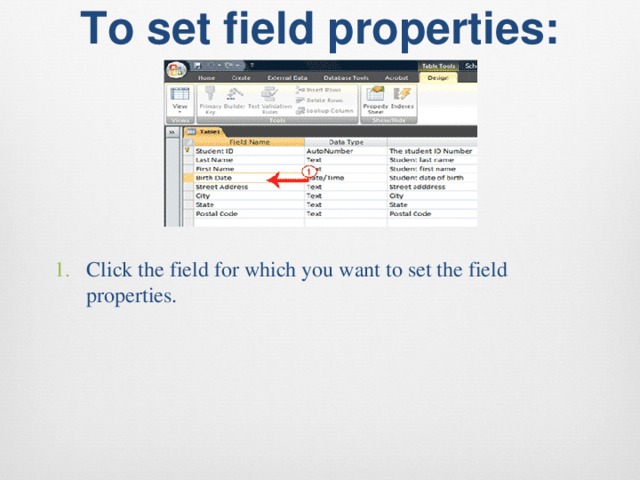
To set field properties:   Click the field for which you want to set the field properties.
To set field properties:

  • Click the field for which you want to set the field properties.
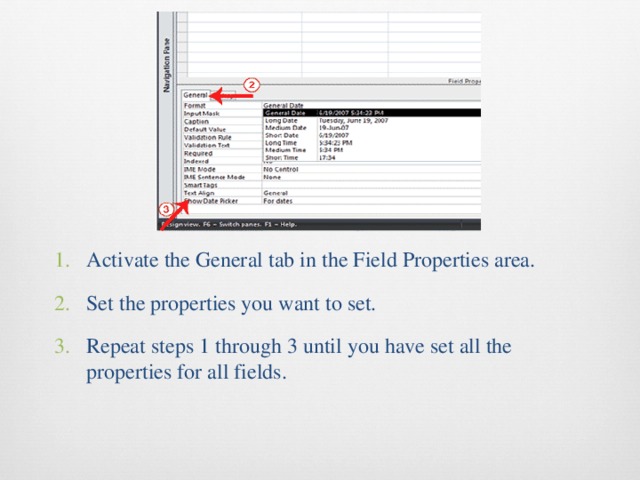
Activate the General tab in the Field Properties area. Set the properties you want to set. Repeat steps 1 through 3 until you have set all the properties for all fields.
  • Activate the General tab in the Field Properties area.
  • Set the properties you want to set.
  • Repeat steps 1 through 3 until you have set all the properties for all fields.
What are views?   Views are different ways of looking at the same object. Tables have four views: Datasheet view, Pivot Table view, Pivot Chart view, and Design view. You use Datasheet view to create a table, edit data, or view data; Pivot Table view to create a pivot table; Pivot Chart view to create a pivot chart; and Design view to create a table or modify an existing table. After you have created a table, you can enter data into it.
What are views?

  • Views are different ways of looking at the same object. Tables have four views: Datasheet view, Pivot Table view, Pivot Chart view, and Design view. You use Datasheet view to create a table, edit data, or view data; Pivot Table view to create a pivot table; Pivot Chart view to create a pivot chart; and Design view to create a table or modify an existing table.
  • After you have created a table, you can enter data into it.
 To enter data into an AutoNumber field:   Press the Tab key. When you make an entry into another field in the record, Access will automatically make an entry into the AutoNumber field.
To enter data into an AutoNumber field:

  • Press the Tab key. When you make an entry into another field in the record, Access will automatically make an entry into the AutoNumber field.
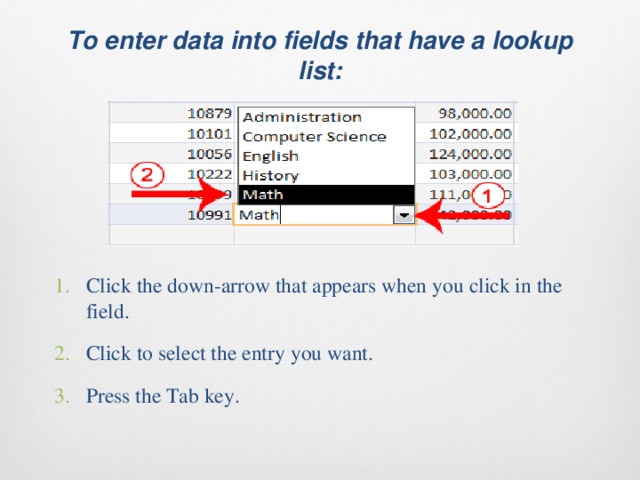
 To enter data into fields that have a lookup list:   Click the down-arrow that appears when you click in the field. Click to select the entry you want. Press the Tab key.

To enter data into fields that have a lookup list:

  • Click the down-arrow that appears when you click in the field.
  • Click to select the entry you want.
  • Press the Tab key.
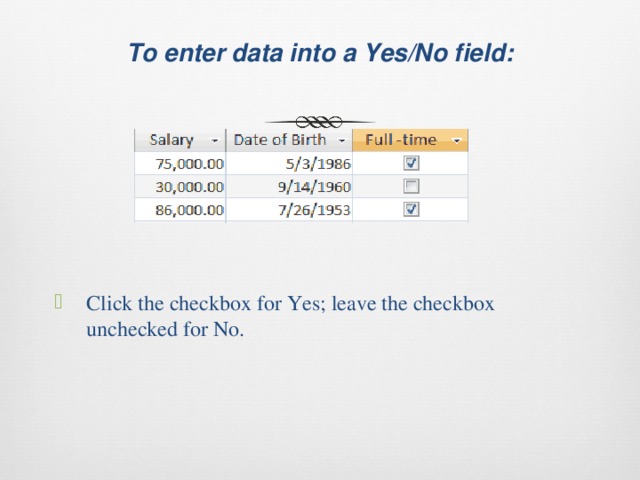
 To enter data into a Yes/No field:   Click the checkbox for Yes; leave the checkbox unchecked for No.
To enter data into a Yes/No field:

  • Click the checkbox for Yes; leave the checkbox unchecked for No.
 Sorting, Filtering and creating relationships   You can sort Access data so you can view records in the order you want to view them, and you can filter data so you only see the records you want to see. By sorting, you can put a column of information in alphabetical, numerical, or date order.
Sorting, Filtering and creating relationships

  • You can sort Access data so you can view records in the order you want to view them, and you can filter data so you only see the records you want to see.
  • By sorting, you can put a column of information in alphabetical, numerical, or date order.
To add a sort:   Click the column label for the column you want to sort. Activate the Home tab. Click the Ascending or Descending button in the Sort & Filter group. Access sorts the column in ascending or descending order.
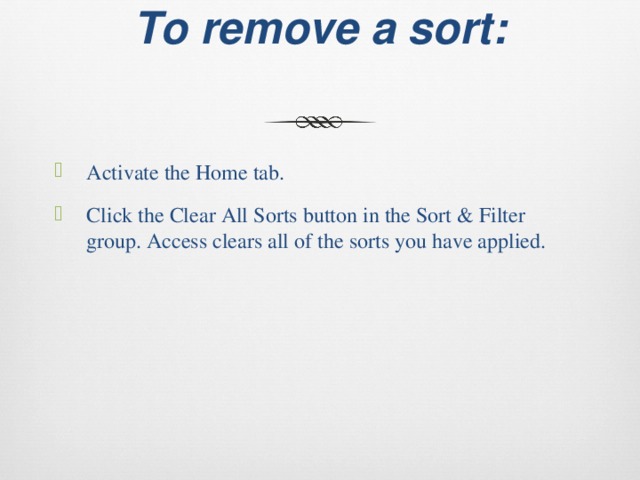
To add a sort:

  • Click the column label for the column you want to sort.
  • Activate the Home tab.
  • Click the Ascending or Descending button in the Sort & Filter group. Access sorts the column in ascending or descending order.
To remove a sort:   Activate the Home tab. Click the Clear All Sorts button in the Sort & Filter group. Access clears all of the sorts you have applied.
To remove a sort:

  • Activate the Home tab.
  • Click the Clear All Sorts button in the Sort & Filter group. Access clears all of the sorts you have applied.
Filter a Table   You can apply a filter to see only the records you want to see. For example, perhaps your database contains students from the states of DE, NJ, and PA and you only want to see the students from DE. You can filter your data so only DE students display.
Filter a Table

  • You can apply a filter to see only the records you want to see. For example, perhaps your database contains students from the states of DE, NJ, and PA and you only want to see the students from DE. You can filter your data so only DE students display.
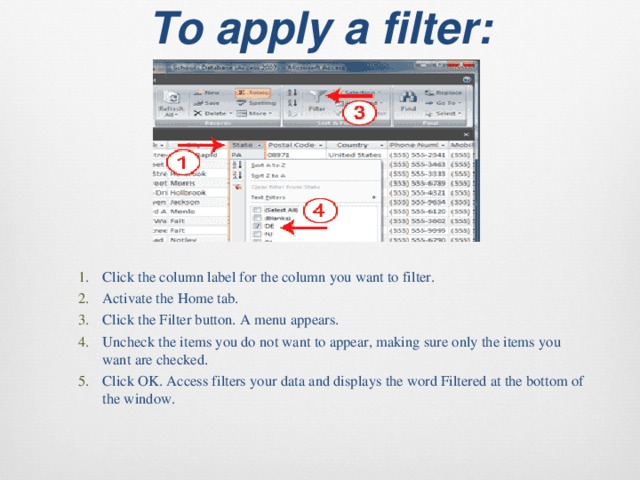
To apply a filter:   Click the column label for the column you want to filter. Activate the Home tab. Click the Filter button. A menu appears. Uncheck the items you do not want to appear, making sure only the items you want are checked. Click OK. Access filters your data and displays the word Filtered at the bottom of the window. Click the column label for the column you want to filter. Activate the Home tab. Click the Filter button. A menu appears. Uncheck the items you do not want to appear, making sure only the items you want are checked. Click OK. Access filters your data and displays the word Filtered at the bottom of the window.
To apply a filter:

  • Click the column label for the column you want to filter. Activate the Home tab. Click the Filter button. A menu appears. Uncheck the items you do not want to appear, making sure only the items you want are checked. Click OK. Access filters your data and displays the word Filtered at the bottom of the window.
  • Click the column label for the column you want to filter.
  • Activate the Home tab.
  • Click the Filter button. A menu appears.
  • Uncheck the items you do not want to appear, making sure only the items you want are checked.
  • Click OK. Access filters your data and displays the word Filtered at the bottom of the window.
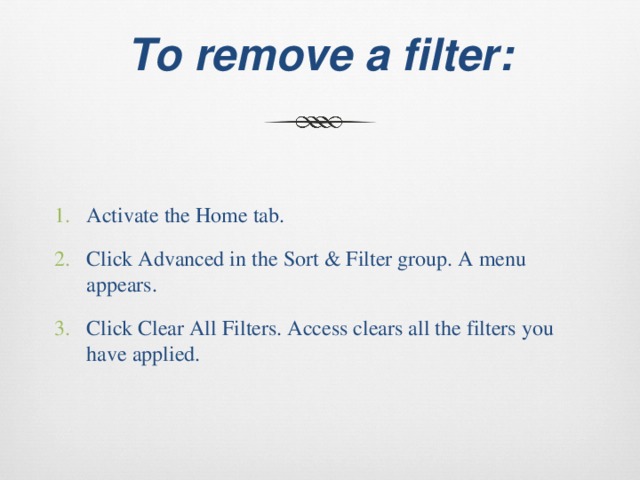
 To remove a filter:   Activate the Home tab. Click Advanced in the Sort & Filter group. A menu appears. Click Clear All Filters. Access clears all the filters you have applied.
To remove a filter:

  • Activate the Home tab.
  • Click Advanced in the Sort & Filter group. A menu appears.
  • Click Clear All Filters. Access clears all the filters you have applied.
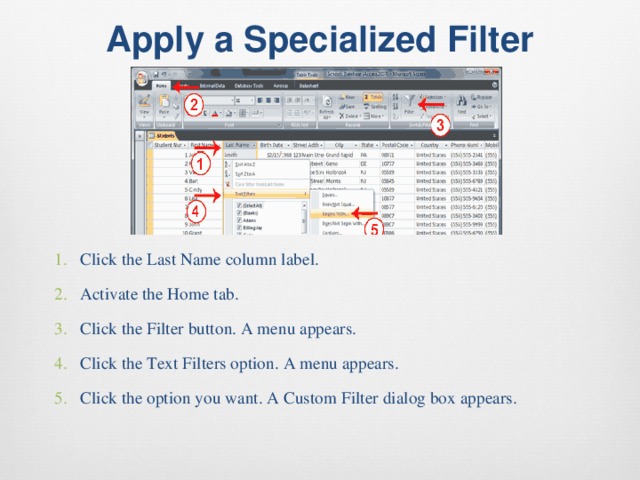
Apply a Specialized Filter   Click the Last Name column label. Activate the Home tab. Click the Filter button. A menu appears. Click the Text Filters option. A menu appears. Click the option you want. A Custom Filter dialog box appears.
Apply a Specialized Filter

  • Click the Last Name column label.
  • Activate the Home tab.
  • Click the Filter button. A menu appears.
  • Click the Text Filters option. A menu appears.
  • Click the option you want. A Custom Filter dialog box appears.
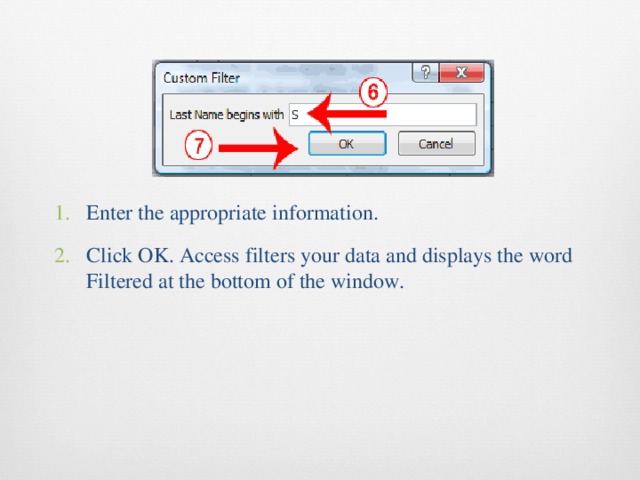
Enter the appropriate information. Click OK. Access filters your data and displays the word Filtered at the bottom of the window.
  • Enter the appropriate information.
  • Click OK. Access filters your data and displays the word Filtered at the bottom of the window.
 Create Relationships   Close all tables and forms. (Right-click on the tab of any Object. A menu appears. Click Close All.)
Create Relationships

  • Close all tables and forms. (Right-click on the tab of any Object. A menu appears. Click Close All.)
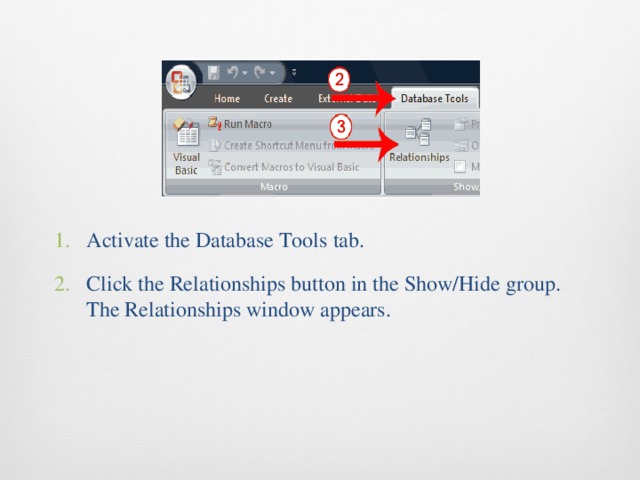
Activate the Database Tools tab. Click the Relationships button in the Show/Hide group. The Relationships window appears.
  • Activate the Database Tools tab.
  • Click the Relationships button in the Show/Hide group. The Relationships window appears.
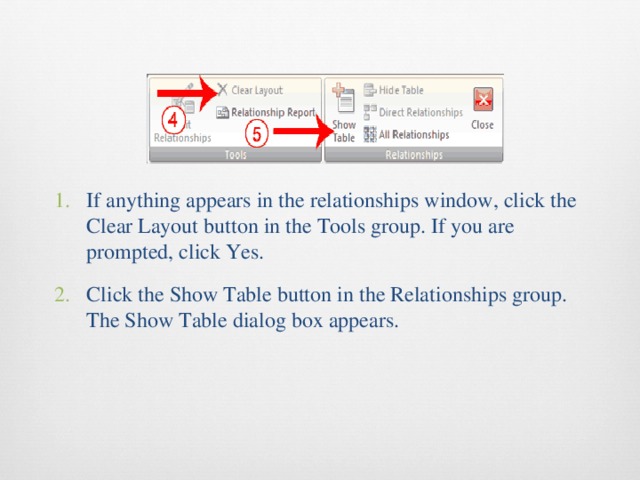
If anything appears in the relationships window, click the Clear Layout button in the Tools group. If you are prompted, click Yes. Click the Show Table button in the Relationships group. The Show Table dialog box appears.
  • If anything appears in the relationships window, click the Clear Layout button in the Tools group. If you are prompted, click Yes.
  • Click the Show Table button in the Relationships group. The Show Table dialog box appears.
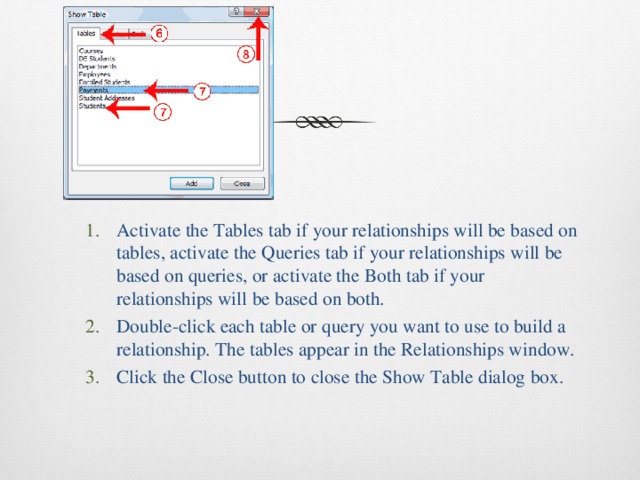
Activate the Tables tab if your relationships will be based on tables, activate the Queries tab if your relationships will be based on queries, or activate the Both tab if your relationships will be based on both. Double-click each table or query you want to use to build a relationship. The tables appear in the Relationships window. Click the Close button to close the Show Table dialog box. Activate the Tables tab if your relationships will be based on tables, activate the Queries tab if your relationships will be based on queries, or activate the Both tab if your relationships will be based on both. Double-click each table or query you want to use to build a relationship. The tables appear in the Relationships window. Click the Close button to close the Show Table dialog box.
  • Activate the Tables tab if your relationships will be based on tables, activate the Queries tab if your relationships will be based on queries, or activate the Both tab if your relationships will be based on both. Double-click each table or query you want to use to build a relationship. The tables appear in the Relationships window. Click the Close button to close the Show Table dialog box.
  • Activate the Tables tab if your relationships will be based on tables, activate the Queries tab if your relationships will be based on queries, or activate the Both tab if your relationships will be based on both.
  • Double-click each table or query you want to use to build a relationship. The tables appear in the Relationships window.
  • Click the Close button to close the Show Table dialog box.
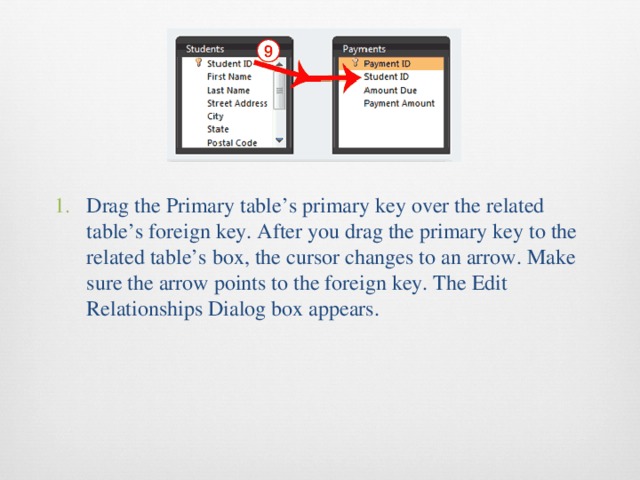
Drag the Primary table’s primary key over the related table’s foreign key. After you drag the primary key to the related table’s box, the cursor changes to an arrow. Make sure the arrow points to the foreign key. The Edit Relationships Dialog box appears.
  • Drag the Primary table’s primary key over the related table’s foreign key. After you drag the primary key to the related table’s box, the cursor changes to an arrow. Make sure the arrow points to the foreign key. The Edit Relationships Dialog box appears.
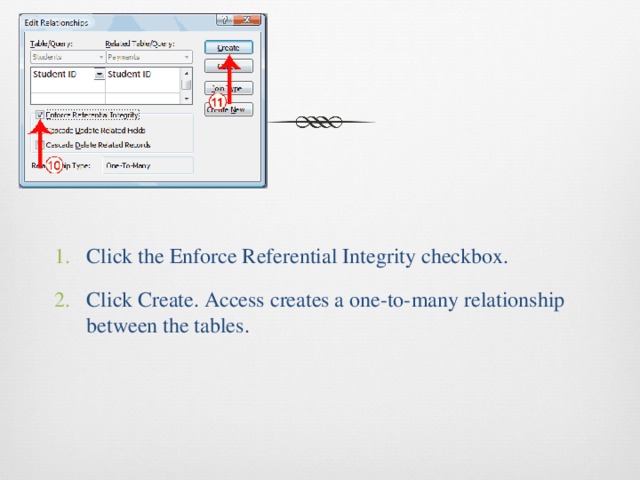
Click the Enforce Referential Integrity checkbox. Click Create. Access creates a one-to-many relationship between the tables.
  • Click the Enforce Referential Integrity checkbox.
  • Click Create. Access creates a one-to-many relationship between the tables.
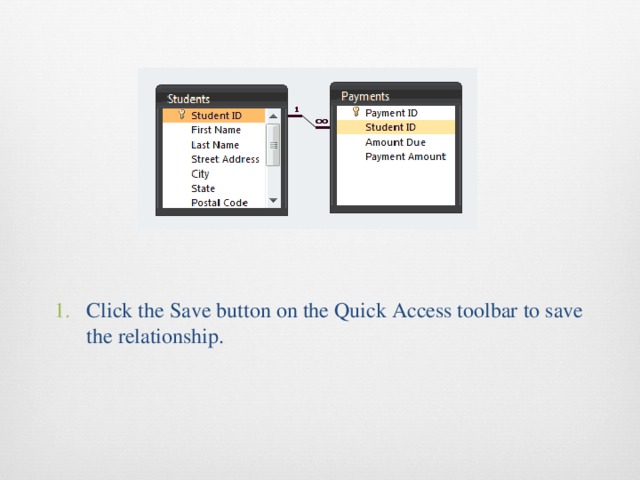
Click the Save button on the Quick Access toolbar to save the relationship.
  • Click the Save button on the Quick Access toolbar to save the relationship.
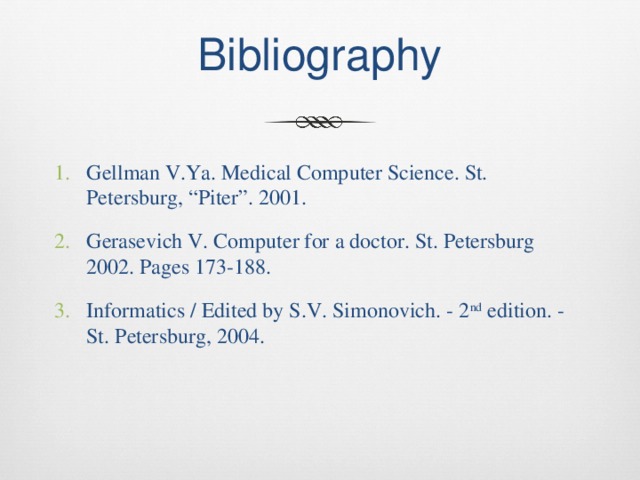
Bibliography Gellman V.Ya. Medical Computer Science. St. Petersburg, “Piter”. 2001. Gerasevich V. Computer for a doctor. St. Petersburg 2002. Pages 173-188. Informatics / Edited by S.V. Simonovich. - 2 nd edition. - St. Petersburg, 2004.

Bibliography

  • Gellman V.Ya. Medical Computer Science. St. Petersburg, “Piter”. 2001.
  • Gerasevich V. Computer for a doctor. St. Petersburg 2002. Pages 173-188.
  • Informatics / Edited by S.V. Simonovich. - 2 nd edition. - St. Petersburg, 2004.
-80%
Курсы дополнительного образования

Основы HTML

Продолжительность 72 часа
Документ: Cвидетельство о прохождении курса
4000 руб.
800 руб.
Подробнее
Скачать разработку
Сохранить у себя:
Презентация по информатике на английском языке "Work with databases" (0.95 MB)

Комментарии 0

Чтобы добавить комментарий зарегистрируйтесь или на сайт