
 Получите свидетельство
 Вход
Вход



Sketchup
3D modelling
3D modelling is making 3 dimensional(3D) objects(models).
3D printing is possible only with 3D model.
We use different programs to make 3D model:
1) Google Sketchup
2) 3D Max
3) AutoCad
Sketchup program
The easiest way to draw in 3D.
Advantages of Sketchup:
1) Good Start
2) Find 3d models(other users share)
3) Customize everything(extension and plug-in)
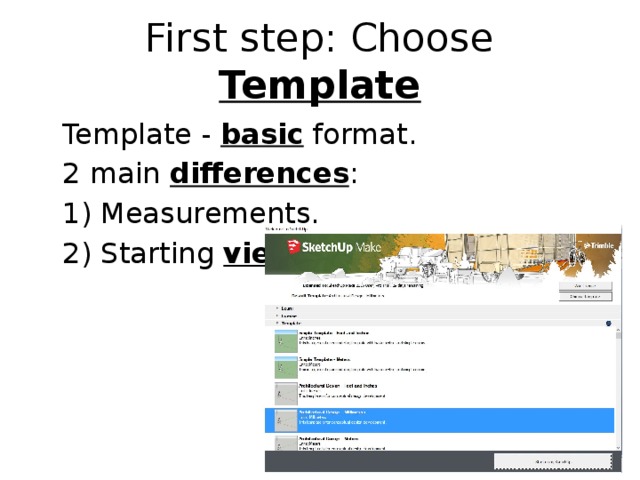
First step: Choose Template
Template - basic format.
2 main differences :
1) Measurements.
2) Starting view .
 Undo " width="640"
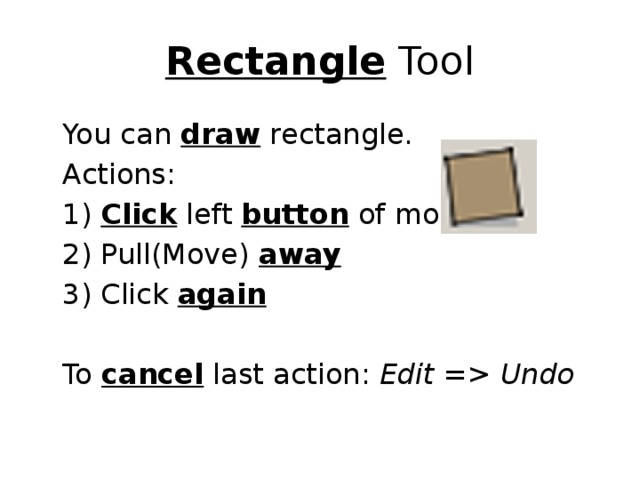
Rectangle Tool
You can draw rectangle.
Actions:
1) Click left button of mouse
2) Pull(Move) away
3) Click again
To cancel last action: Edit = Undo
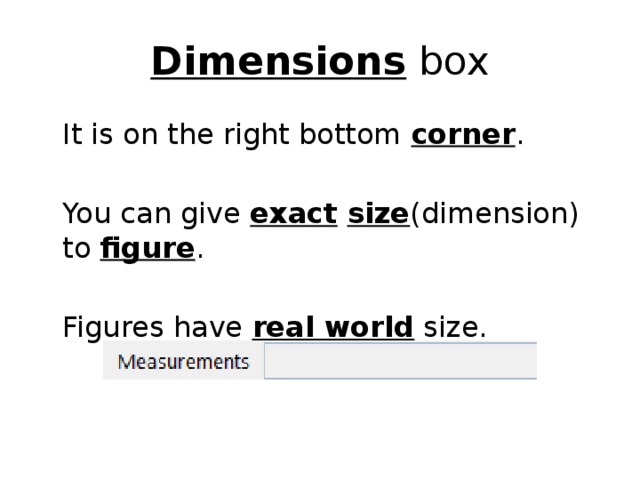
Dimensions box
It is on the right bottom corner .
You can give exact size (dimension) to figure .
Figures have real world size.
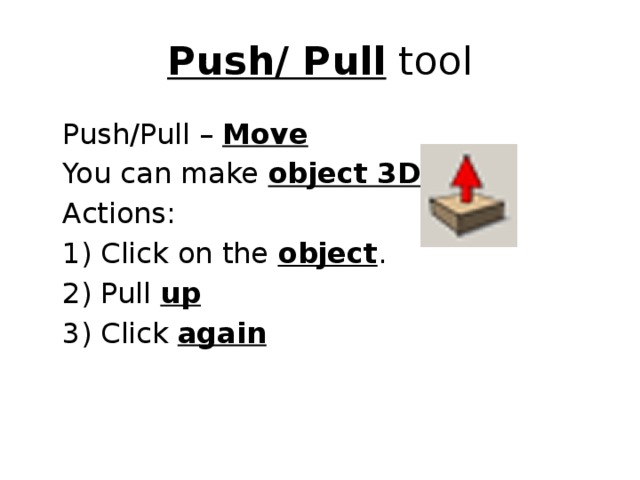
Push/ Pull tool
Push/Pull – Move
You can make object 3D .
Actions:
1) Click on the object .
2) Pull up
3) Click again
Geometry
Point(.)
Endpoint – point on the corner .
On Face – point on the surface .
On Edge – point on the side of figure.
Midpoint – middle point on the side .
Circle tool
You can draw circle.
Actions:
1) Click left button of mouse
2) Set up radius .
3) Click again
Circle + Push/Pull tool = Cylinder .
Navigation
Orbit tool
You can orbit view .
Actions:
1) Click and Drag
2) Orbit
You can press wheel down to orbit.
Pan tool
You can move view from side to side(without orbiting).
Actions:
1) Click and Drag
2) Move cursor.
You can press ( wheel down + Shift ) to pan.
Zoom tool
You can zoom figure.
Actions:
1) Click and Drag
2) Move cursor.
You can also scroll your mouse.
Select tool
You can select figure.
Actions:
1) Click and Drag
2) Move cursor.
3) Drop
* You can press Shift button to select more objects.
*After selecting you can press Delete button to remove object.
Line tool
You can draw a line.
Actions:
1) Click left button of mouse
2) Pull(Move) away
3) Click again
Move tool
You can move your figure.
Actions:
1) Click left button of mouse
2) Pull(Move) away
3) Click again
*Use Shift button to be accurate .
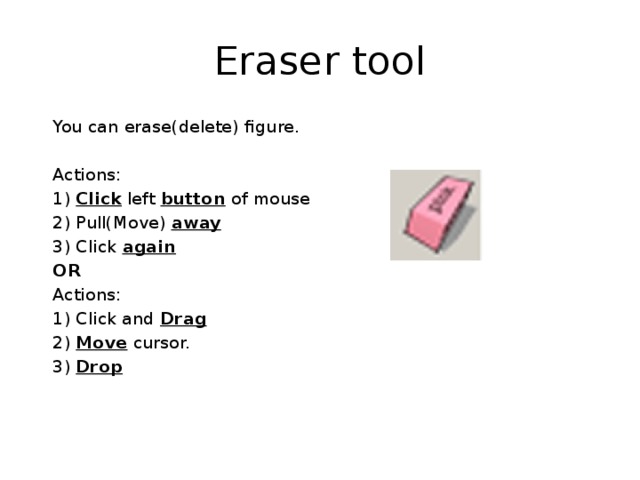
Eraser tool
You can erase(delete) figure.
Actions:
1) Click left button of mouse
2) Pull(Move) away
3) Click again
OR
Actions:
1) Click and Drag
2) Move cursor.
3) Drop
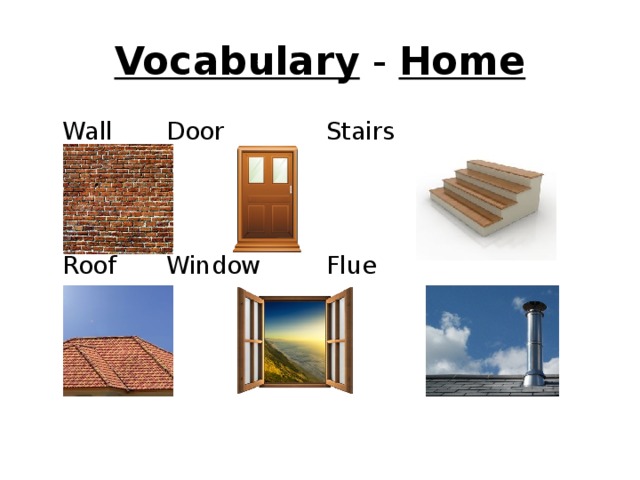
Vocabulary - Home
Wall Door Stairs
Roof Window Flue
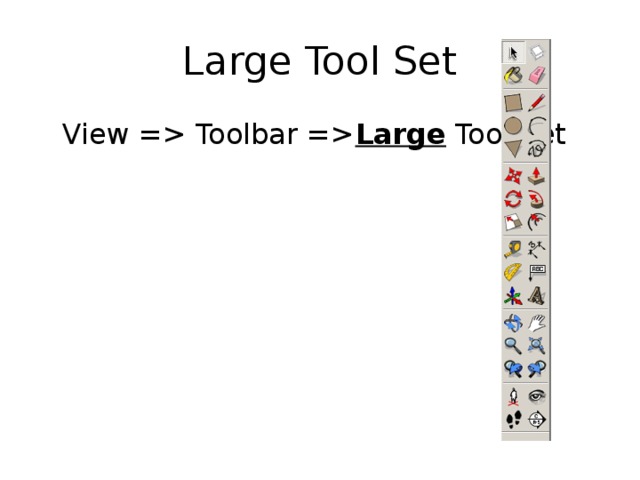 Toolbar = Large Tool Set " width="640"
Large Tool Set
View = Toolbar = Large Tool Set
![Using dimension box 1) Choose rectangle tool. 2) Click, give navigation and Release mouse. 3) Set number [number1, number2] or [number1; number2] 4) Press Enter. Example : rectangle [5m, 24cm], line[210mm].](https://fsd.videouroki.net/html/2017/02/20/v_58aacc3f9dd4e/img19.jpg)
Using dimension box
1) Choose rectangle tool.
2) Click, give navigation and Release mouse.
3) Set number
[number1, number2] or [number1; number2]
4) Press Enter.
Example : rectangle [5m, 24cm], line[210mm].
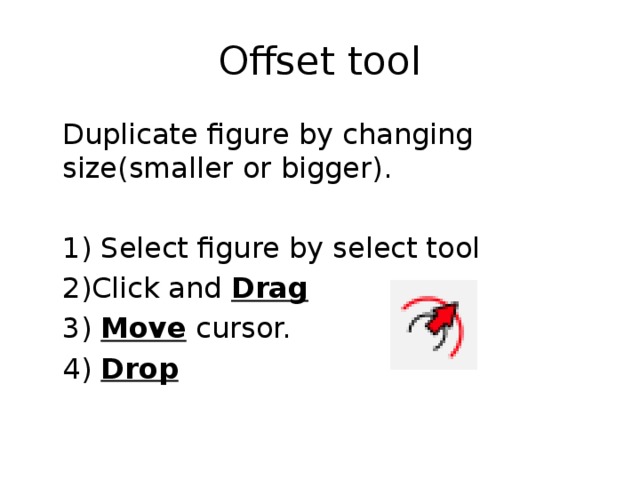
Offset tool
Duplicate figure by changing size(smaller or bigger).
1) Select figure by select tool
2)Click and Drag
3) Move cursor.
4) Drop
Follow Me tool
You can pull object by particular sides .
Actions:
1) Click and Drag
2) Move cursor by perimeter.
3) Drop
* You can select all needed sides , then press Follow Me tool to be more accurate .
 Delete Guides " width="640"
Tape measure tool
You can draw guide lines .
Actions:
1) Click left button of mouse
2) Pull(Move) away
3) Click again
* To remove guides: Edit = Delete Guides
Double Clicking
Action:
- Choose tool Double click
- Choose tool
- Double click
Result:
Redo previous action with this tool.
Paint Bucket tool
You can fill object with color or material .
Actions:
1) Choose color or material
2) Click on surface
* To paint all connected surfaces: Ctrl + Click
* To choose color from objects: Alt + Click
*** JUST TRY IT! YOU WILL SEE THE RESULT .
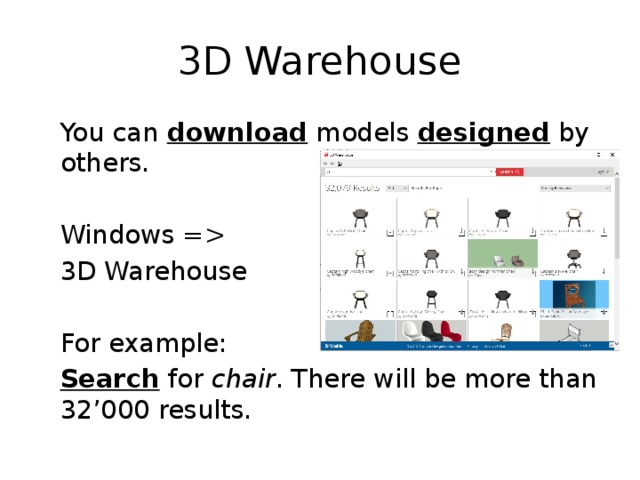 3D Warehouse For example: Search for chair . There will be more than 32’000 results. " width="640"
3D Warehouse
You can download models designed by others.
Windows =
3D Warehouse
For example:
Search for chair . There will be more than 32’000 results.
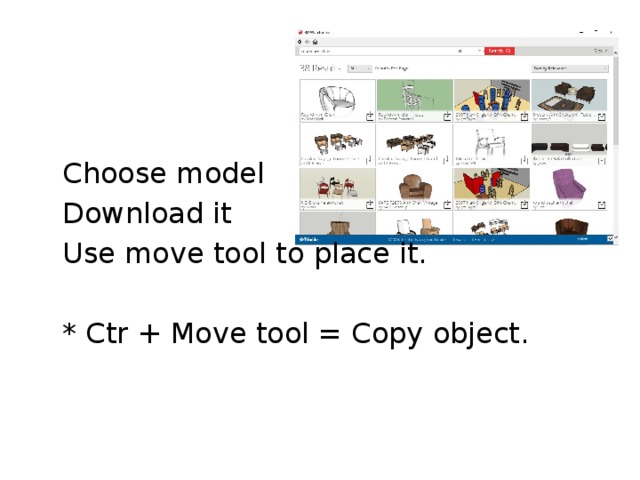
Choose model
Download it
Use move tool to place it.
* Ctr + Move tool = Copy object.
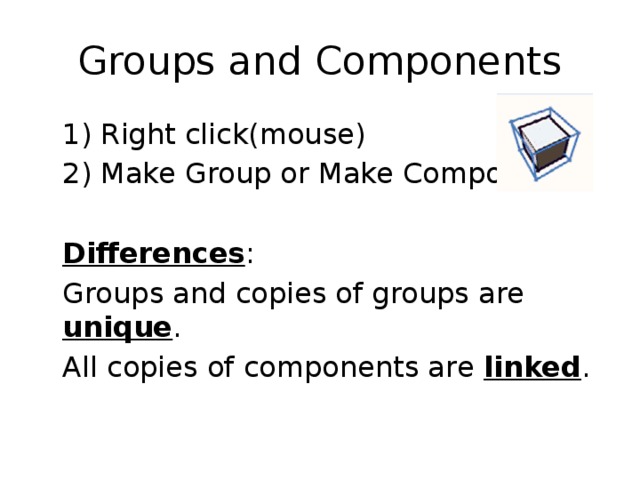
Groups and Components
1) Right click(mouse)
2) Make Group or Make Components
Differences :
Groups and copies of groups are unique .
All copies of components are linked .




 3D modelling Sketchup program (1.68 MB)
 0
0 418
418 2
2 Нравится
0
Нравится
0


